
Connected to Audiomanager and undocked all the Headsets you wanted to use, but experiencing issues with sound transmission or reception?
Once the pieces of equipment are configured, the main menu will appear as follows:
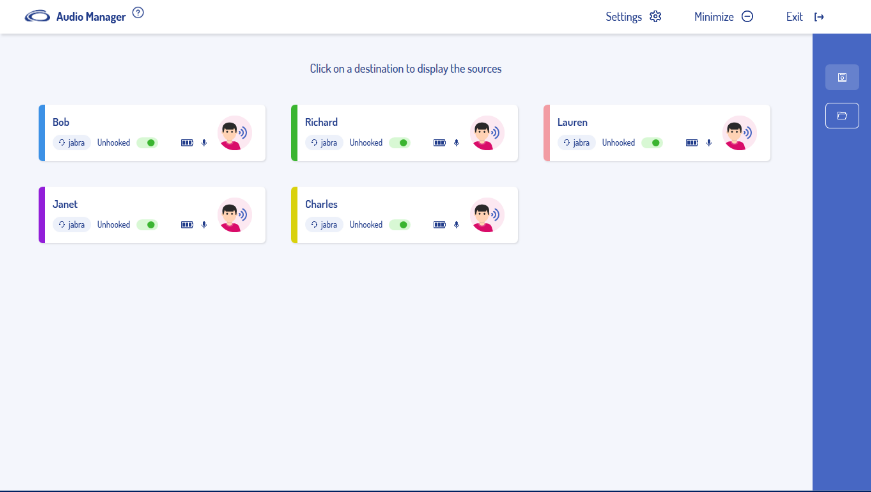
Each piece of equipment looks the same:
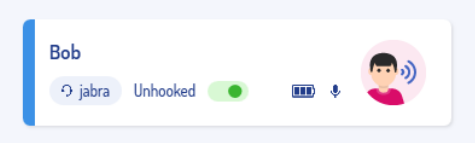
- Bob: Define the name of the equipment during configuration. It is possible to
change the name from the settings.
- Jabra: equipment type.
Note: The three following features are only available with Jabra-branded equipments.
- Unhooked / Hooked: The icon displays the equipment state. Indicates if the equipment is hooked or unhooked from its docking station.
It is possible to force one of these states by clicking on it.
- The icon  displays the battery level of the equipment.
- The icon  displays the microphone state. Indicates if the microphone is muted or not. Clicking on this icon allows you to mute or unmute the microphone.
By clicking on a piece of equipment, a submenu drops down to make the audio routing of each equipment :
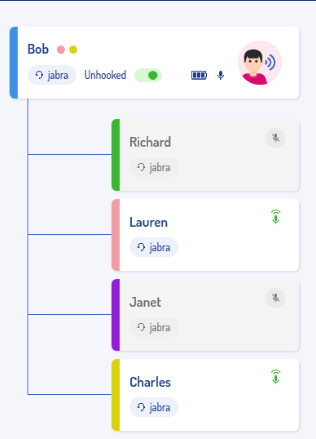
Active equipments are displayed on a white background with a green microphone icon.
Inactive equipments are displayed on a grey background with a cut microphone icon.
The pink and yellow dots near the name « Bob » indicate the colors of the devices he Is listening to.
Left-clicking on the microphone Icon allows to enable or disable the communication between them.
Once you have configured everything like stated in this guide, you should not have any issues left with AudioManager.
If all attempted solutions have been unsuccessful, please don't hesitate to contact Medinbox Support Services for further assistance: support@medinbox.com