
You've recently initiated a new case, but instead of your camera feed, you're encountering the message 'NO RTSP SIGNAL'.
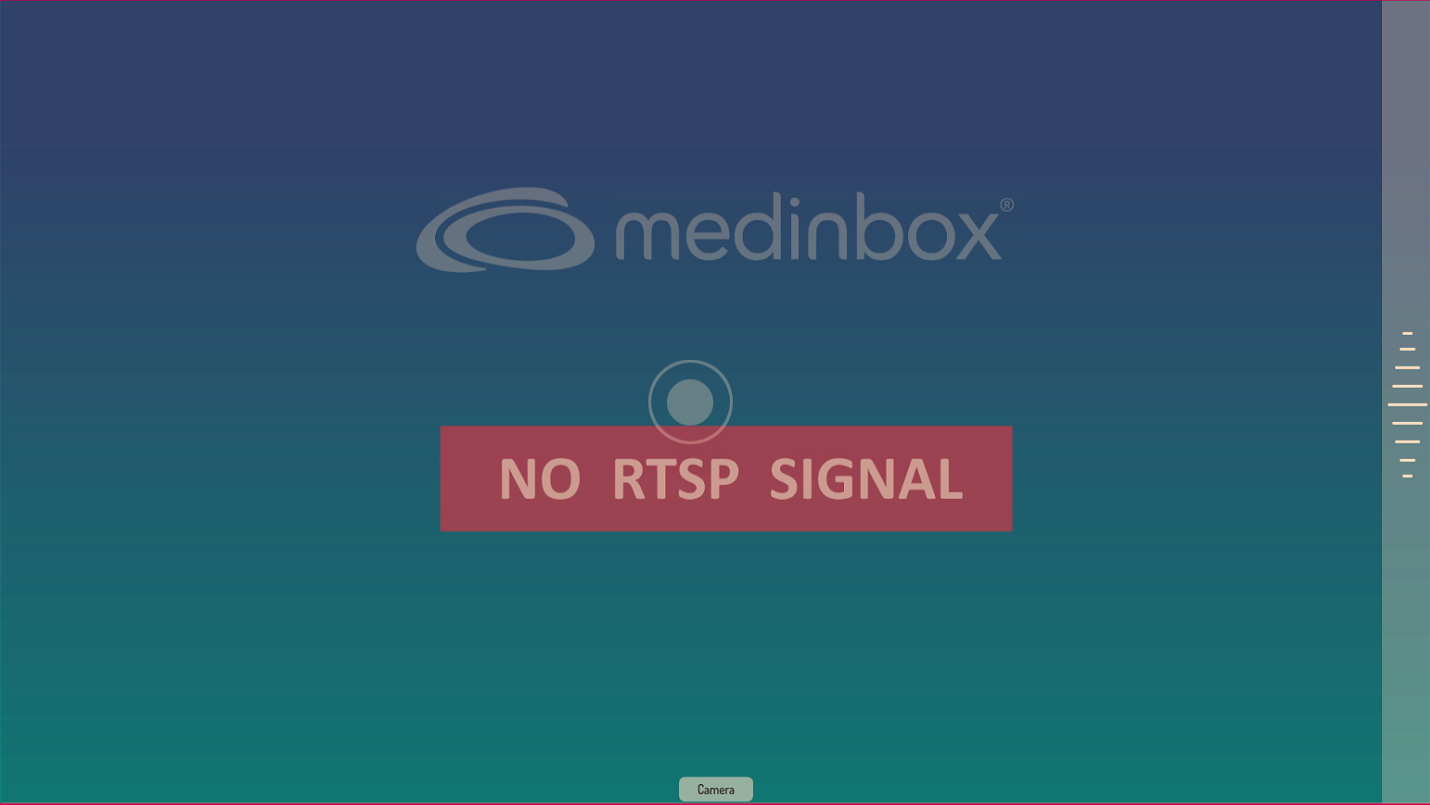
If you powered on the camera after launching Medinbox Producer, please stop and restart the software. This should resolve the issue.
If the camera still does not display the feed:
- Reach the corresponding camera and check if it is correctly powered and connected to the Medinbox system. Make sure the cables are correctly seated.
- A green LED should be visible on the camera base.
The camera can be connected in two ways:
- Through an Ethernet cable (CAT5e, CAT6...).
- Through a power supply for the power, and an SDI cable for the video feed - if this is the case the mentionned issue cannot happen.
The cameras are connected using static IP addresses.
To check if the adapter is correctly configured:
- Close Medinbox if it's opened.
- On the Welcome menu, press Settings in the top right corner.
- Click on IP settings or Network settings (depending on the version of the software)
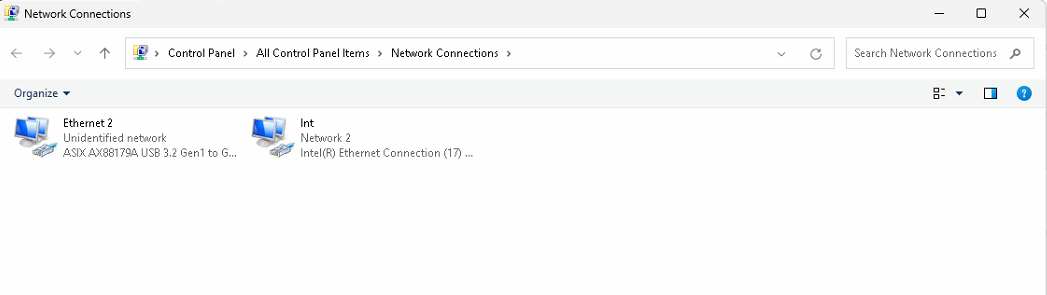
- Right-click on your camera adapter, USB to Ethernet adapter.
- It never is the Intel Ethernet connection.
- Click on properties :
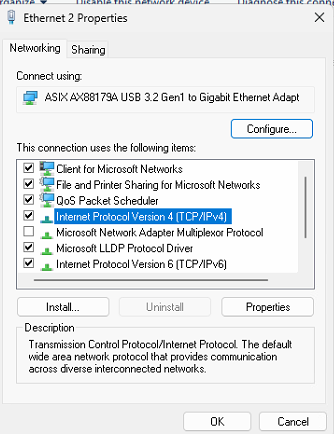
- Double-click on Internet Protocol Version 4, you should see this screen :
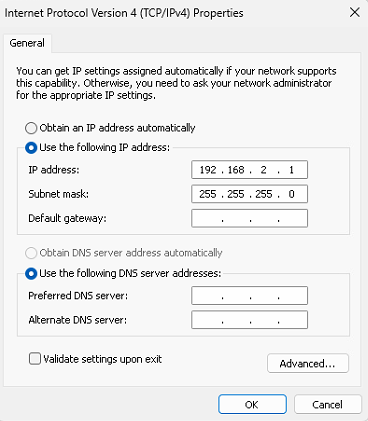
- Set the IP address of the adapter to 192.168.2.1.
- Set the Subnet Mask to 255.255.255.0
- Leave the other fields empty.
If all attempted solutions have been unsuccessful, please don't hesitate to contact Medinbox Support Services for further assistance: support@medinbox.com
Related to