
When you power on your Medinbox machine, the image displayed on your screen appears blurry.
This issue is often related to Windows or the computer's cable. The following steps will guide you through resolving it.
- Checking the cables
First of all, check that all your cables are correctly connected.
Here is a diagram of your screen and it's port and correct cables :
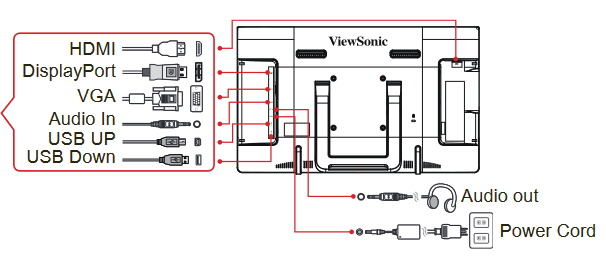
You may see that, two plastic caches are protecting the ports, remove them carefuly.
Check that the HDMI cable going to the "MONITOR 1" port on your Medinbox Case is correctly connected to the HDMI port on your screen and vice-versa.
If the cable is correctly connected from both sides, you may continue with the following steps.
- Updates or Hardware errors
- Check that the power supply of the Monitor is correctly plugged from both sides.
- Check for updates.
Go to the Windows search bar and type "Update", then open "Windows Update"
Then, once the settings page is open, check if there is an update available :
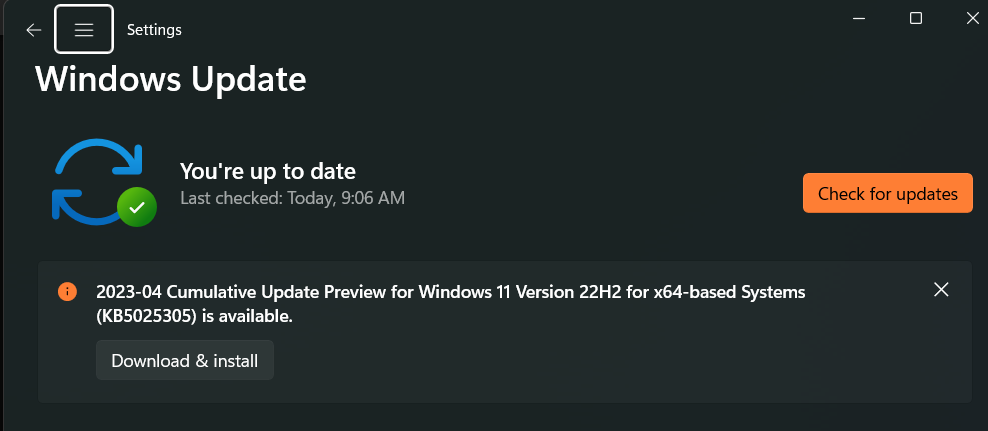
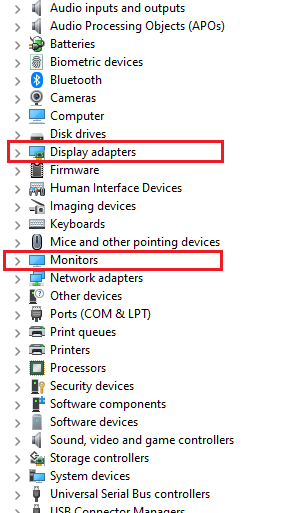
- Go to the Device Manager and look for a Hardware error, in the displays or displays adapter.
If all attempted solutions have been unsuccessful, please don't hesitate to contact Medinbox Support Services for further assistance: support@medinbox.com
Related to