
Procedure
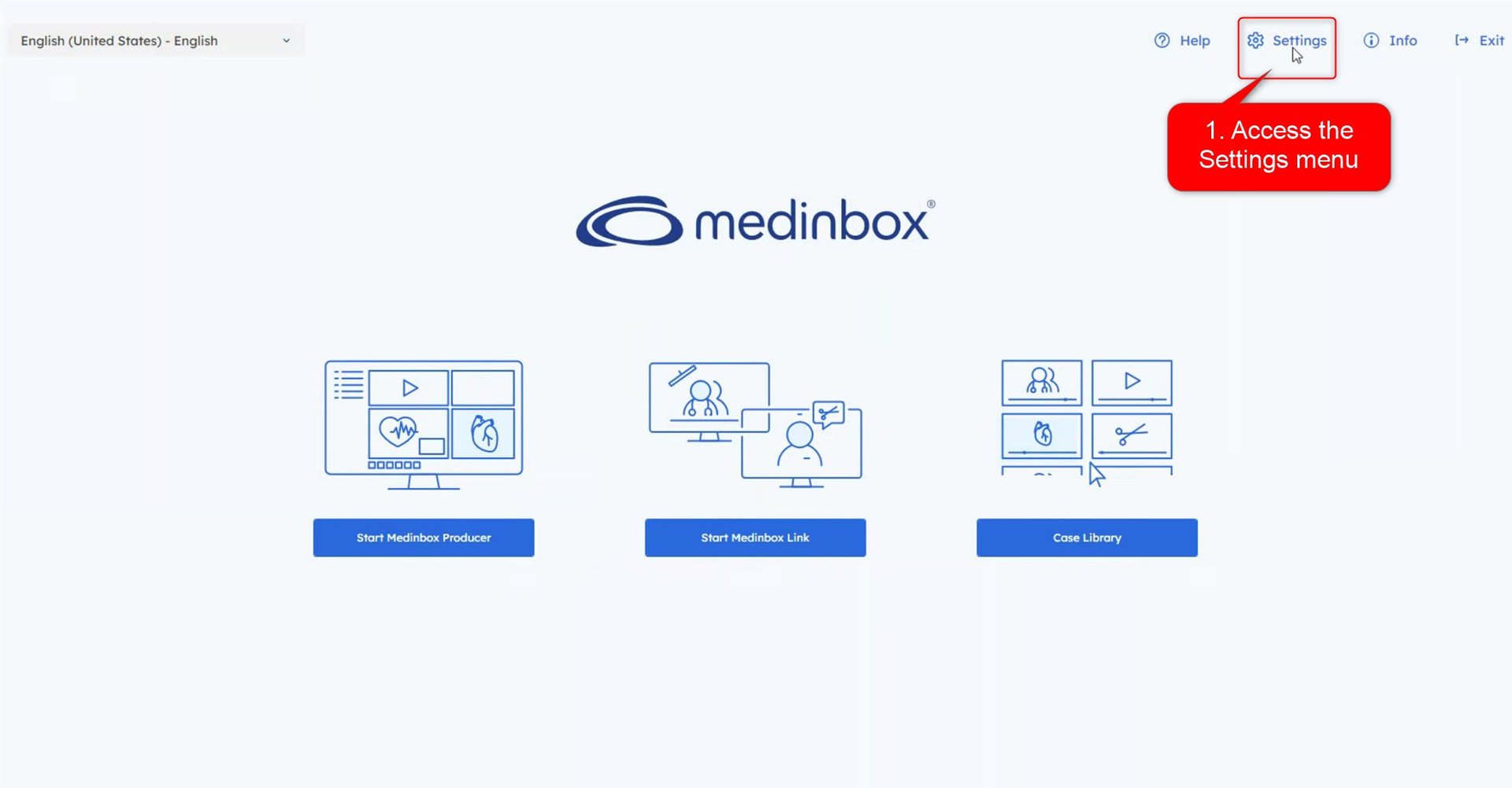
1. Open Network Settings
- From the AppCenter home screen, click:
Settings
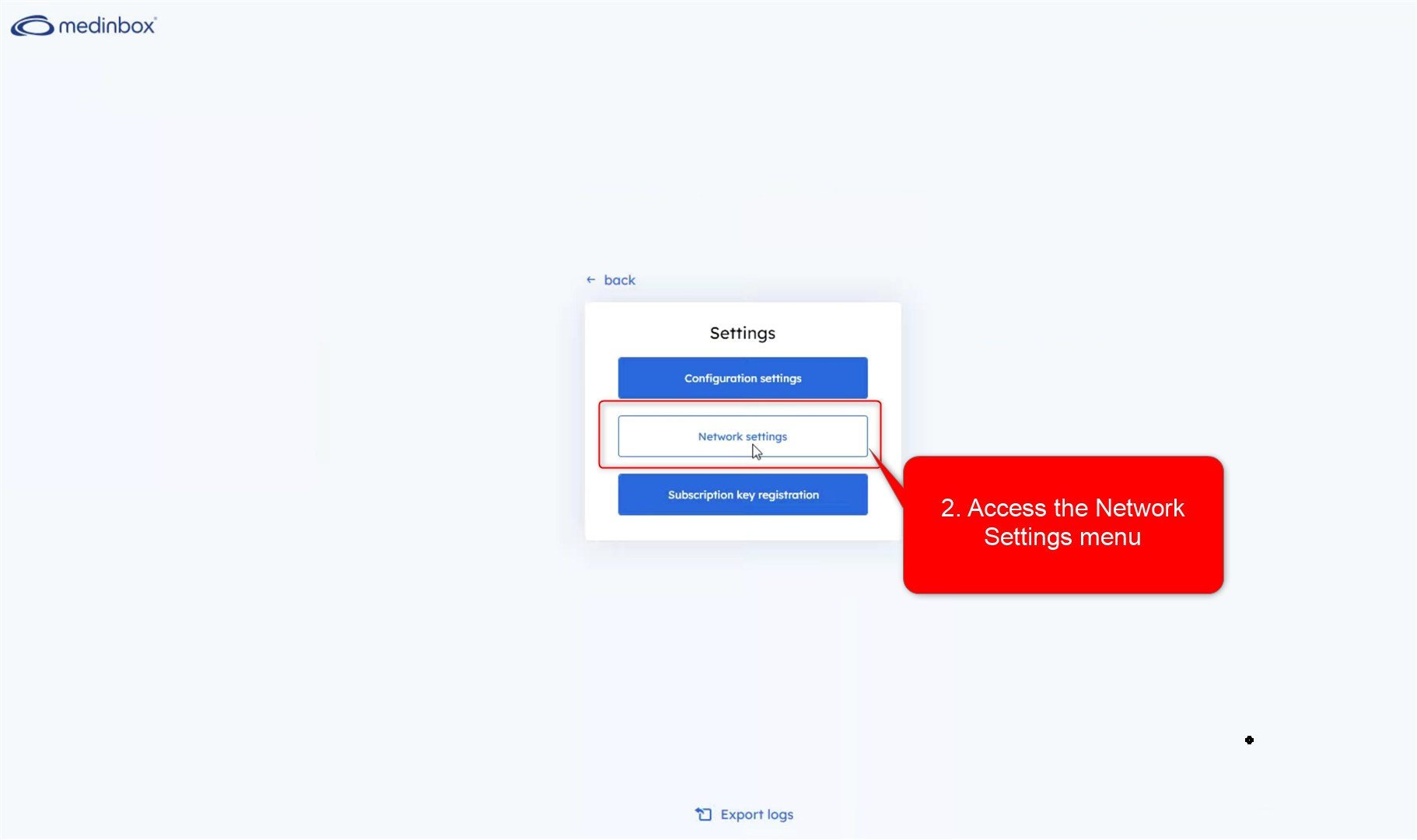
- Select:
Network Settings
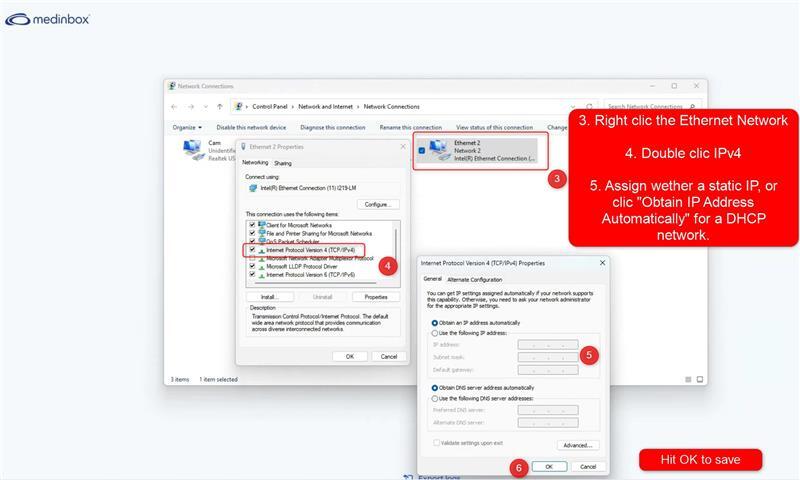
2. Open the Ethernet Adapter Properties
- Right-click the Ethernet adapter.
- Select:
Properties - Double-click:
Internet Protocol Version 4 (TCP/IPv4)
3. Configure the Network Mode
For a DHCP Network
Select:
Obtain an IP address automaticallyand
Obtain DNS server address automaticallyFor a Static IP Network
Select:
Use the following IP addressThen enter the values provided by your local IT department:
- IP Address
- Subnet Mask
- Default Gateway
- DNS Server(s)
Apply the Changes
Click:
OKto save the configuration.
The network settings are applied immediately.