
Issue Description
The display output appears cropped or partially cut off, even though Windows is correctly set to a 1920×1080 (1080p) resolution.
Symptoms
• Parts of the image are missing on the edges of the screen.
• The Windows display resolution is confirmed as 1920×1080.
• The issue persists across applications.
Preliminary Checks
1. Temporarily grant Administrator rights to the Medinbox-user session.
2. Open Windows Display Settings and confirm that the active resolution is set to 1920×1080.
3. If the resolution is correct, proceed to check the screen configuration.
Root Cause
This issue is typically caused by the display itself having the 'Overscan' feature enabled. Overscan is a screen-level setting that scales the image beyond the visible area, resulting in a cropped display.
Resolution
This setting cannot be modified from Windows or the Medinbox system. It must be disabled directly on the screen.
Procedure To disable Overscan (to be done by a local user on the field):
1. Press the first physical button located under the screen.
2. Navigate to 'Manual Image Adjust'.
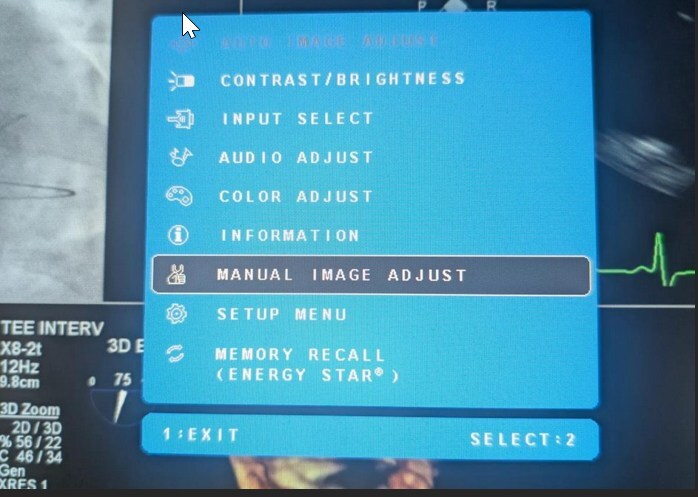
3. Disable the 'Overscan' option.
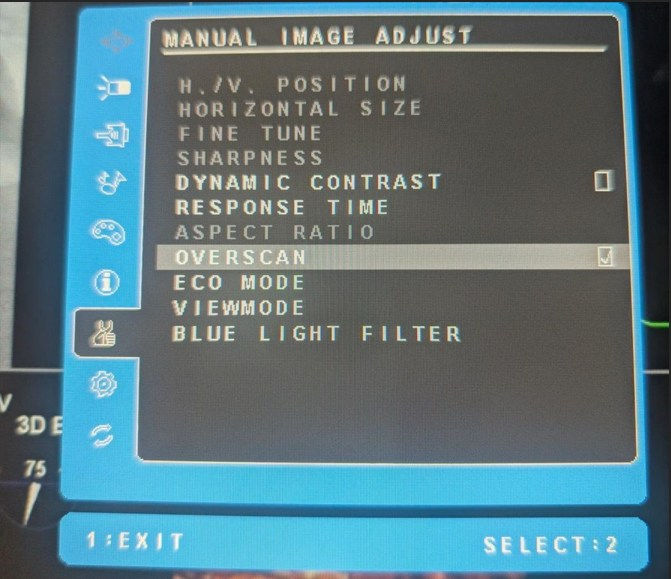
4. Exit the menu and make sure that the full image is now visible.
Support Note
If the user does not have access to the screen controls, local IT or on-site staff must perform this adjustment.
Related to