
Teams meeting should only be joined by launching the application from an opened case in Medinbox Producer.

After clicking on this icon, the following Microsoft Teams window will appear above the Medinbox interface.
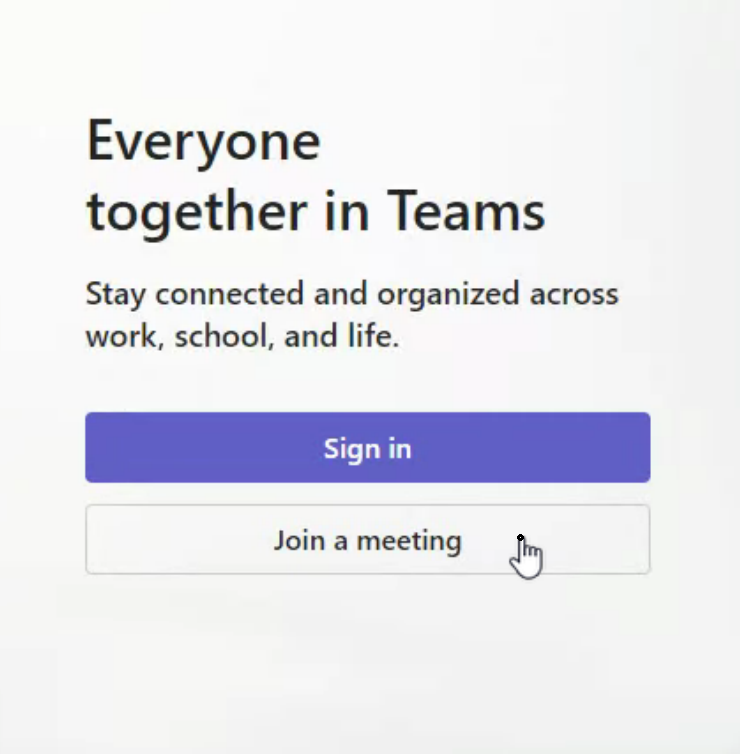
The users should click on "Join a meeting" and connect using the meeting ID and password they were given. If the user needs to create a meeting, it should be done using their account, or from another system.
Camera and Audio Settings:
Leave the camera and microphone ON and click on "Join now".
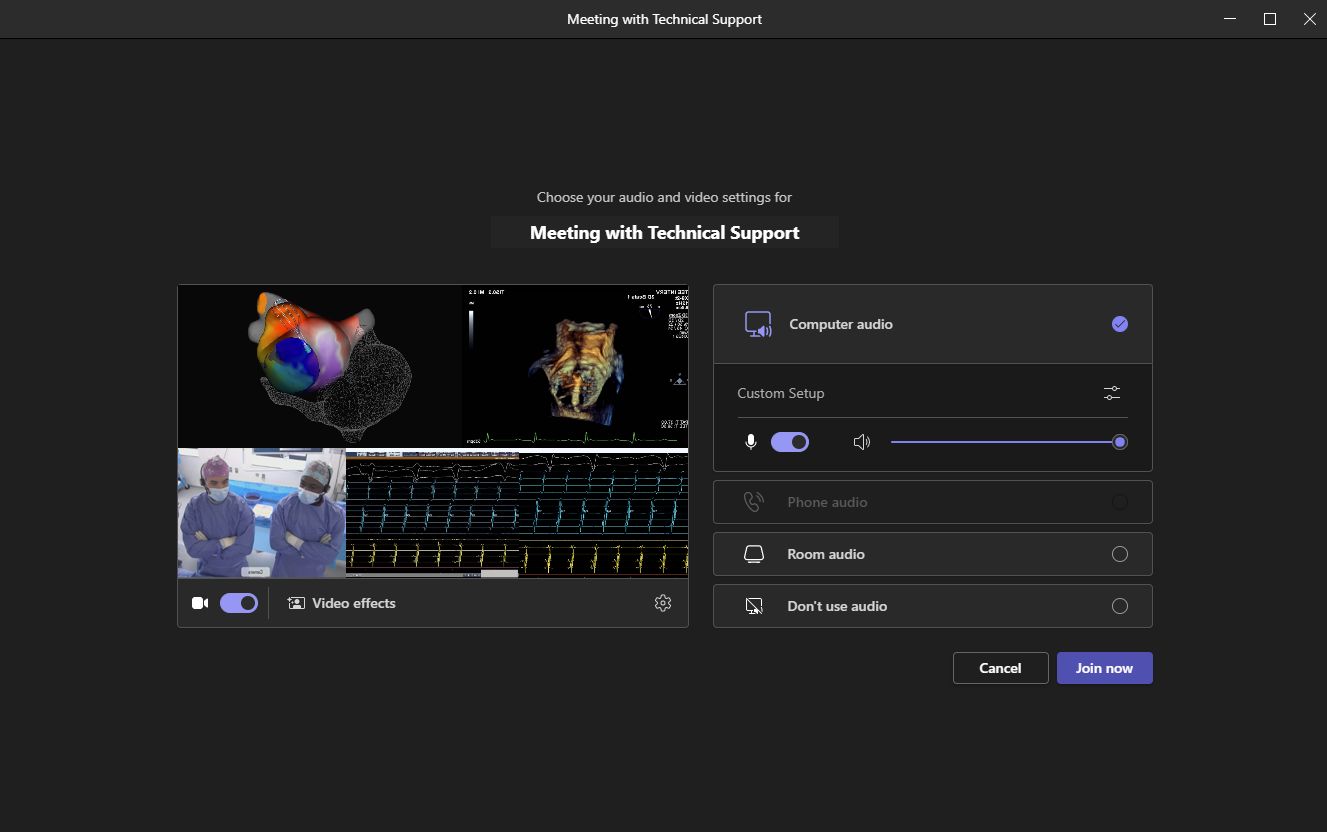
Once the meeting is started, it automatically displays the Medinbox video stream as the camera setting and the Medinbox audio stream as the audio and speaker settings.
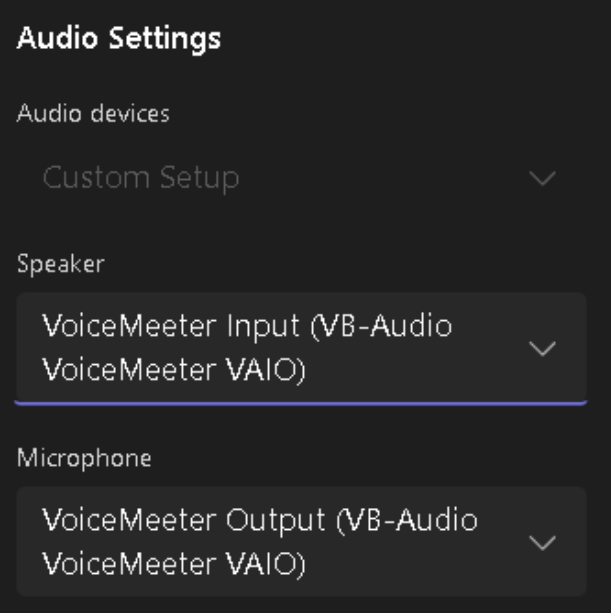
In case the settings have been changed, the default settings should strictly be as follows:
Speaker: VoiceMeeter Input
Microphone: VoiceMeeter Output
Select Medinbox as the Camera.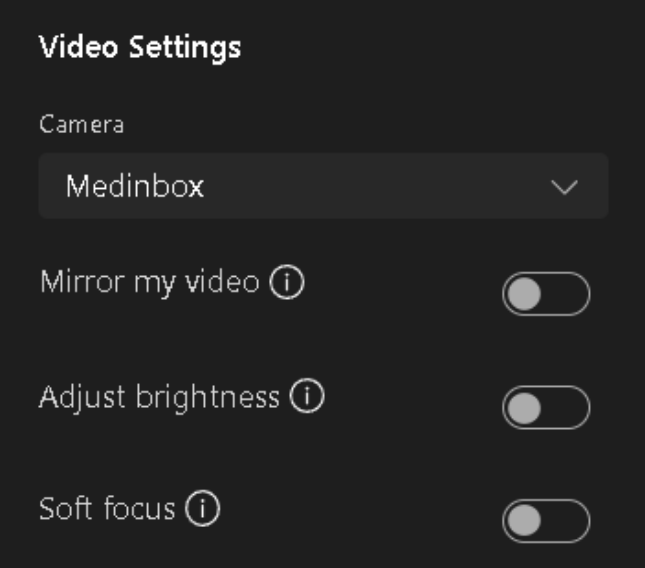
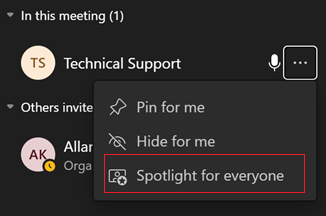
During the meeting, it may be useful to set the Medinbox stream as the primary speaker.
In the Participants panel, hover over "Medinbox" to click the "..." button and select "Spotlight for Everyone".
Adding participants:
Within Microsoft Teams, you have the ability to invite participants affiliated with your organization to the meeting.
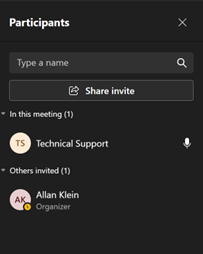
To initiate this, click on the "Participants" icon positioned within the meeting controls.
Upon doing so, a side panel will unveil, displaying the roster of already connected participants.

You can directly type the name of a participant from your organization in this area to invite them to join the meeting.
To invite people outside your organization, you can share the invitation link:
- in advance, if the meeting has been previously scheduled
- by another means than the Medinbox
Related to