
If AudioManager starts without any sources and destinations, click on settings in the top right corner.
Configuring sources:
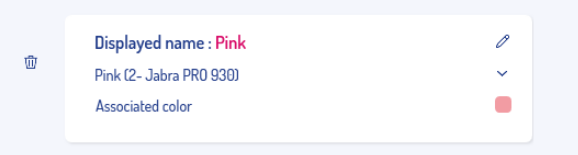
A source is an audio input device in Audio Manager. Usually a microphone.
- Add Source: Allows to add a new audio source.
- Name: Audio source name.
- The icon
 allows modifying an audio source’s name.
 - The icon
 represents the audio device's name. It allows to change the selected device.
 - The icon
 « Associated color »: it is the source’s color to match with the physical color of the headset. The icon allows you to change the associated color.
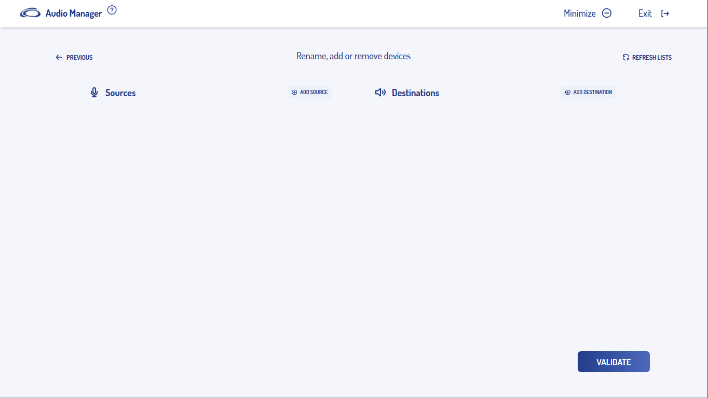
- The sources and destinations should be auto-populated with the headsets
- If the devices aren't auto-populated, click on add source and add destination to add a device.
- Select the device you want to add by clicking on the device name (e.g. 2-Jabra PRO 930)
- Repeat adding the sources and destination for every device you want added.
- Rename the source and change the colour to match the device it is associated with.
Configuring destinations:
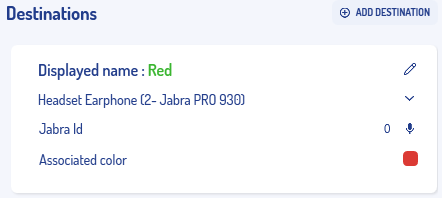
- Displayed name: audio destination name.
- The icon
 allows modifying the audio destination's name.
 - The icon
 represents the audio device's name. It allows to change the selected device.
 - ID Jabra is the Headset number. It is necessary to identify and assign a different number to each device using the
 button.
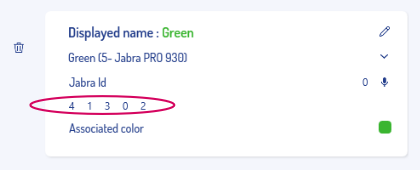
- The icon
 « Associated color »: it represents the source's color, which should match the physical color of the headset. This icon allows you to change the associated color. The headset and the microphone function in pairs, and they should have the same color
If all attempted solutions have been unsuccessful, please don't hesitate to contact Medinbox Support Services for further assistance: support@medinbox.com