
Troubleshooting Jabra PRO 930 Headsets and AudioBox
Overview
Use this guide if you experience any of the following issues:
- A headset is not detected.
- No audio is heard during a procedure.
- A headset cannot connect to its charging base.
- The AudioBox does not power on.
- Headsets cannot communicate with each other.
Follow the steps below in order.
1. Verify the AudioBox Connections
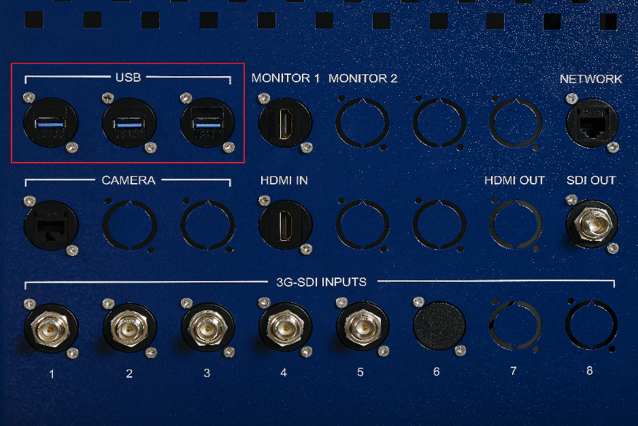
Before troubleshooting the headsets, ensure that the AudioBox is powered on and properly connected.
Verify that:
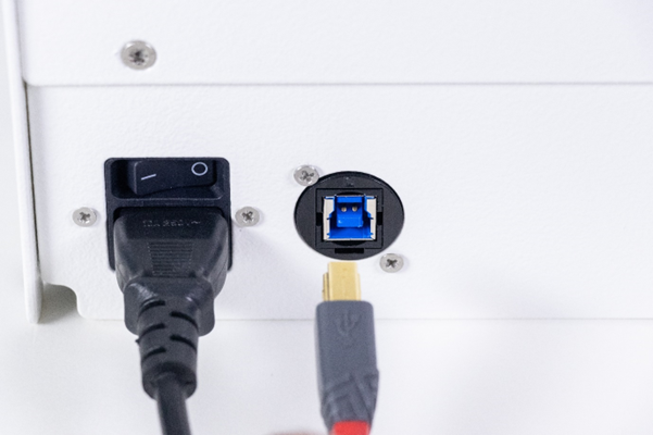
- The AudioBox power cable is securely connected.
- The AudioBox USB cable is securely connected.
- The USB cable is plugged into the Medinbox workstation.
- The AudioBox power switch is set to ON.
If everything is connected correctly, continue to the next step.
2. Reset the Jabra Headset
If the headset is not connecting to its charging base, perform a factory reset.
When to Perform This Reset
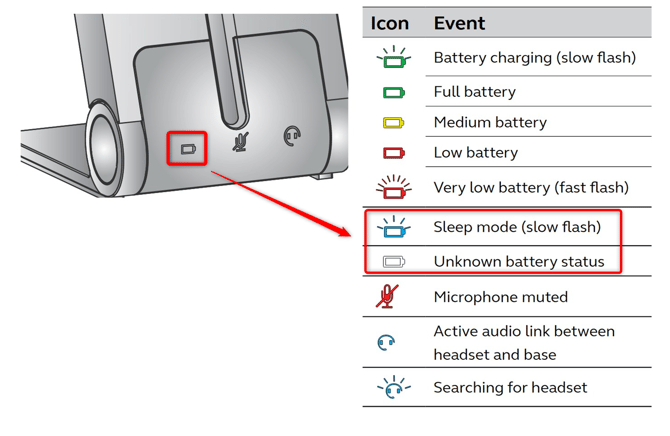
- The battery LED on the base is white.
- The headset LED is flashing blue.
Jabra Headset Reset Procedure
- Put on the headset.
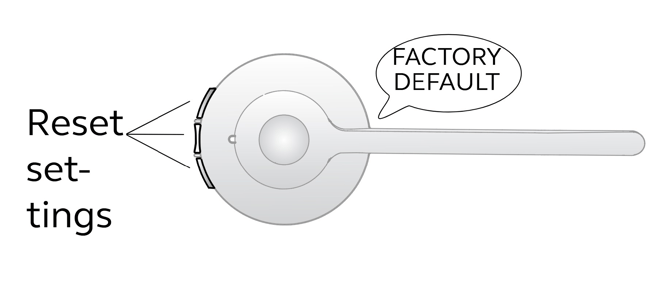
- Press and hold simultaneously:
- Mute
- Volume Up
- Volume Down
- Continue holding the buttons until you hear:
"Factory default"
- Release the buttons.
The charging base will restart and reset its settings.
3. Re-Pair the Headset
If the headset is still not detected:
- Disconnect the charging base power cable.
- Remove the headset from the charging base.
- Press and hold the Answer button.
- Wait until the white LED flashes rapidly three times.
- Release the button.
- Place the headset back on the charging base.
- Reconnect the power cable.
The base should emit a startup sound and begin pairing with the headset.
4. Power Cycle the AudioBox
If multiple headsets are affected:
- Turn the AudioBox OFF.
- Wait 10 seconds.
- Turn it back ON.
The charging bases should display a green LED after startup.
If not, continue to the next step.
5. Try Another USB Port
If the AudioBox is still not detected:
- Disconnect the AudioBox USB cable.
- Connect it to another USB port on the computer.
- Wait a few seconds for Windows to detect the device.
If the issue persists, continue to the next step.
6. Inspect the AudioBox Connections (Advanced)
⚠️ Perform this step only if you are comfortable opening the AudioBox.
- Turn off the AudioBox.
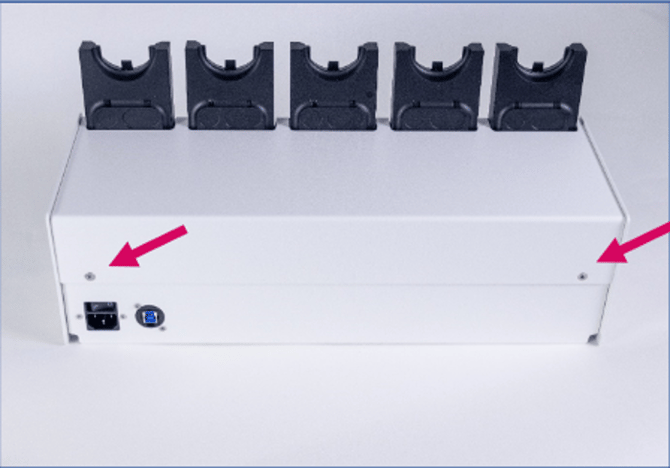
- Remove the two rear screws using a Torx screwdriver.
- Remove the top cover.
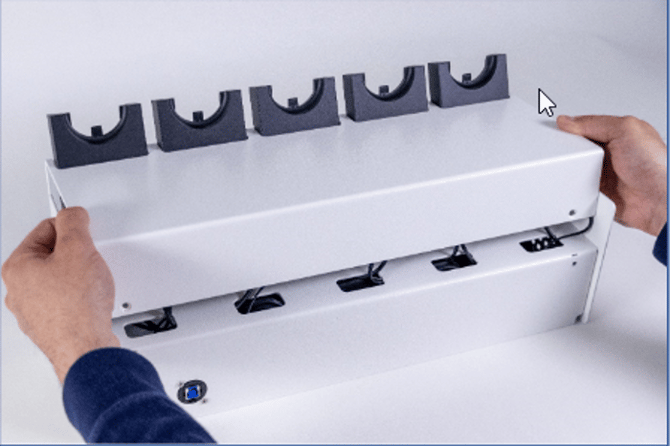
- Verify that:
- the power cable is securely connected
- the USB cable is securely connected
- no internal cable has become disconnected
Reconnect any loose cable before closing the AudioBox.
7. Verify the Headsets
After completing the troubleshooting:
- Restart Medinbox Producer.
- Remove each headset from its charging base.
- Verify that all headsets are detected.
- Perform a local audio test or start a Teams or Zoom call.
- Confirm that all headsets can communicate correctly.