
⚠️ WIP – To Be Completed
Scope
This article applies to Corebox systems that fail to boot and display a BitLocker recovery prompt at startup.
Issue Description
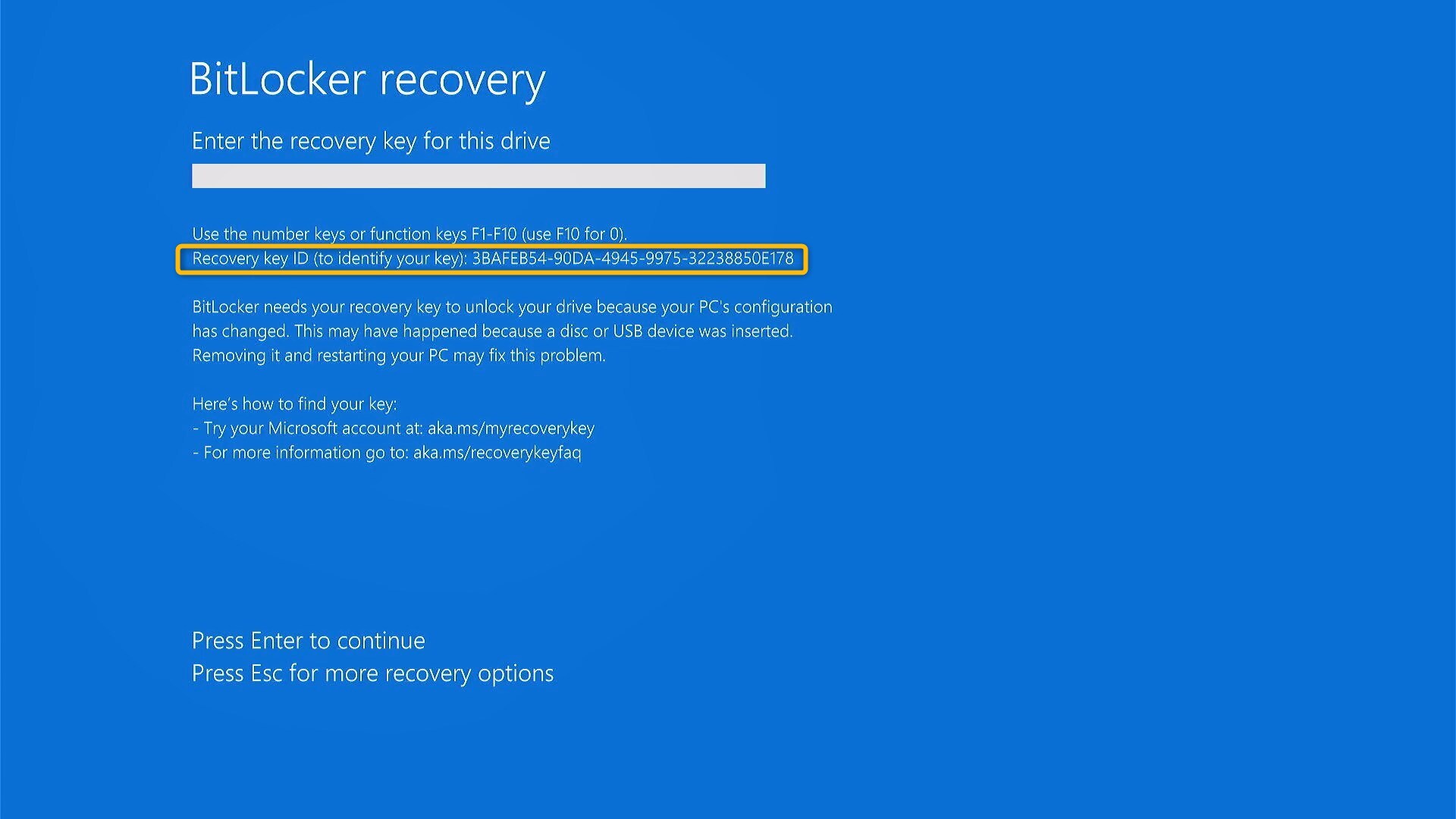
At system startup, the Corebox is blocked with the following message:
“Enter the recovery key to get going again”
As a result, the system cannot boot into Windows and is unusable for the end user.
Symptoms
Corebox does not boot into Windows.
A BitLocker recovery key is requested immediately at startup.
No access to AppCenter or Producer is possible. No remote access either.
Initial Diagnosis
In some cases, this issue may be caused by a transient boot or hardware state and can be resolved without entering a recovery key.
Before proceeding with recovery key retrieval, basic checks must be performed.
Step 1 – Basic Recovery Attempt (Mandatory)
Before attempting any key retrieval, perform the following actions:
Perform a full shutdown of the Corebox.
Power off the system completely.
Wait at least a few minutes to ensure the system is fully powered down.
Restart the Corebox.
During startup, press any key on the keyboard to ensure the system detects input devices correctly.
✅ If the system boots normally after this step, no further action is required.
Step 2 – Collect the BitLocker Recovery Key ID (Mandatory)
If the BitLocker recovery prompt persists:
Contact Medinbox Support and provide the full BitLocker Recovery Key ID.
The Recovery Key ID must be provided:
In writing, or
As a clear photo or screenshot, where the Recovery Key ID is fully readable.
Confirm that the Recovery Key ID matches the one displayed on the Corebox screen.
Step 3 – Insert the Recovery Key provided by Medinbox Support
Head to the “Enter the recovery key” screen and insert the Recovery Key provided by Medinbox Support.
Check and confirm whether the Corebox boots correctly to Medinbox Support.
Expected Outcome
Either the system successfully boots after a clean restart,
Or the BitLocker recovery key is retrieved and applied,
Or the system is identified as non-recoverable and escalated for replacement.
Notes
Do not attempt random recovery keys.
Do not reinstall Windows without prior validation.
Always request and verify the Recovery Key ID before searching for a BitLocker key.
Follow the official BitLocker recovery process once documented.
Related to