
How to Check
- Start the Corebox / Medinbox computer.
- Log in to the standard Windows user session.
- Open AppCenter.
- Select the Infos tab.
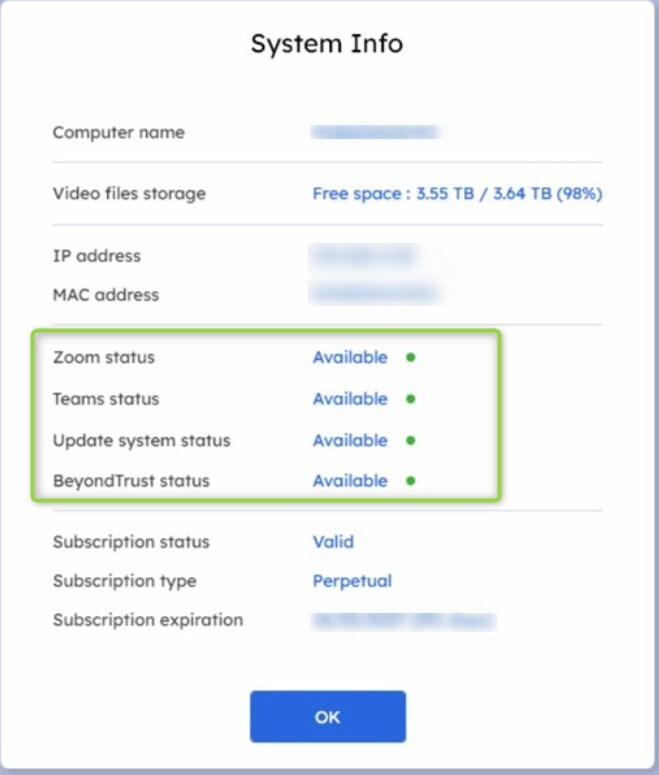
The Infos page displays the connection status of the main Medinbox services, including:
- Zoom
- Microsoft Teams
- Fleet Management – used for updates and system communication
- BeyondTrust – used by Medinbox Support for remote assistance
What to Look For
Check the status displayed for each service.
If all services are available, the Medinbox system is communicating correctly with the required online services.
If one or more services display:
Not available
take note of which services are affected and report the result to Medinbox Support.
If Several Services Are Not Available
If several or all services show Not available, this may indicate a network or firewall configuration issue.
Please contact your local IT team and ask them to:
- verify that the Medinbox system has an active Internet connection;
- check that the required network access is allowed;
- confirm that the Medinbox Network Matrix requirements are being followed.
If your IT team does not have access to the Medinbox Network Matrix, they should contact Medinbox Support to request it.
Expected ResultThe Infos tab should show that Zoom, Teams, Fleet Management, and BeyondTrust are available and accessible from the Medinbox system.
e.