
When the room has no usable network, an Android smartphone plugged into a switched-on Corebox with a USB data cable can lend it its 4G/5G connection. Android calls this USB tethering.
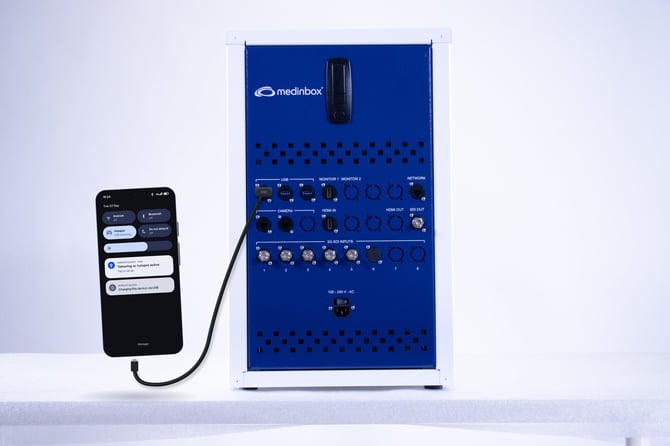
Android smartphone connected by a USB cable to a USB port on the Corebox front panel, with USB tethering active
Android smartphones only
The smartphone must be an Android phone. iPhones cannot share their connection with the Corebox over USB, so do not use one for this procedure.
Before you start
- An Android smartphone with mobile data turned on. Some carriers limit tethering or charge extra for it, so check the plan if in doubt.
- A USB cable that carries data (USB‑C to USB‑A for most recent phones). A charge‑only cable powers the phone but does not share the connection. The cable supplied with the phone normally carries data.
- The smartphone unlocked, close enough to the Corebox for the cable to reach without tension.
Procedure
1. Turn on the Corebox
Switch on the Corebox via wake on Keyboard, or with the power switch above the 100 - 240 V - AC socket, at the bottom of the front panel. Wait until it has finished starting up before plugging in the smartphone.
2. Plug in the smartphone with a USB data cable
Connect the cable to one of the three ports in the USB group, at the top left of the Corebox front panel, then to the smartphone.
Tip: if the phone asks what to use USB for, choose USB tethering and go straight to step 4.
3. Turn on USB tethering
On the smartphone, open Settings, tap Network & internet, then Hotspot & tethering, and switch on USB tethering. The status under the switch changes to Sharing.
Leave Wi‑Fi hotspot and Bluetooth tethering off: they are not needed. Menu names vary by brand; see the table below.
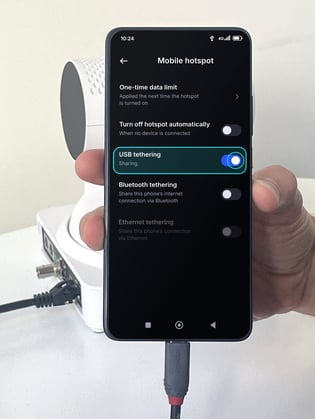
Android smartphone connected by USB cable, showing the Mobile hotspot screen with the USB tethering switch turned on
Option greyed out? The phone does not see a data connection over the cable. Check that the cable is firmly plugged in at both ends, or use another cable that carries data.
4. Check that sharing is active
Swipe down from the top of the screen. The notification Tethering or hotspot active confirms that the Corebox is using the smartphone’s mobile data. A USB icon also appears in the status bar.
Keep the phone plugged in for the whole session. The Corebox USB port also powers it, which limits battery drain.
Faster route from Quick Settings
Once the Corebox is on and the cable is connected, swipe down from the top of the screen, touch and hold the Hotspot tile, then turn on USB tethering. If the tile is missing, tap Edit in the Quick Settings panel and drag Hotspot into it.
Menu names by brand
| Smartphone | Path |
|---|---|
| Google Pixel and most Android phones | Settings > Network & internet > Hotspot & tethering > USB tethering |
| Samsung Galaxy | Settings > Connections > Mobile Hotspot and Tethering > USB tethering |
| Xiaomi, Oppo, Motorola and others | Open Settings and type “USB tethering” in the search bar |
Stop sharing
At the end of the session, turn off USB tethering on the smartphone, then unplug the cable from the Corebox.
Troubleshooting
USB tethering is greyed out or missing
The option only becomes available once the phone detects a data connection over USB. Check that the Corebox is switched on, then unplug and replug the cable, try another USB port of the Corebox, and finally another cable: charge‑only cables are the most common cause.
USB tethering is on but the Corebox has no internet
Check that mobile data is on and that the phone itself can open a web page. Then turn USB tethering off and on again. If the phone shows little or no signal in the room, move it closer to a window within the reach of the cable.
The connection stops after a while
Some phones turn tethering off when they go into battery saver mode or after a system update. Turn off battery saver during the session and check the switch again in Hotspot & tethering.
How much mobile data will a session use?
Video streaming uses a lot of data. For long sessions, check the remaining allowance on the phone plan before starting, and prefer the hospital network whenever it is available.
Still stuck?
Contact Medinbox customer support: support@medinbox.com or +33 5 31 98 07 56.